

 |
|||||||||
| Designing or Creating new Contest Results Reports | |||||||||
| This powerful form provides the tools and features necessary to create many variations of Contest Results Reports with the collated results freshly constructed each time from your stored data. Each report provides the instructions for ACRO to calculate the results for either a single sequence or a combination of up to twenty sequences, ranked either by the Pilots total scores or by their overall percentage. The single sequence reports can use the sequence Lock status to append "- Provisional" or "- Final" to the report title, and the header and footer can optionally include various items of additional supporting information. | |||||||||
|
How to quickly reach this often-used
form from almost anywhere ... On all forms that can make use of any Results Report, Right-Click in the form and the menu you see will always have a Results Reports Designer option. This is a great time saver! |
|||||||||
|
Using your Results Reports Reports stored here can be accessed and used by any of the print or web output Contest and Team Results reports forms. In each case you select a stored Report and then the appropriate Output stream, start the process and ACRO will generate the required output. |
|||||||||
 |
|||||||||
 |
|||||||||
|
|
|||||||||
| Making a new Results Report | |||||||||
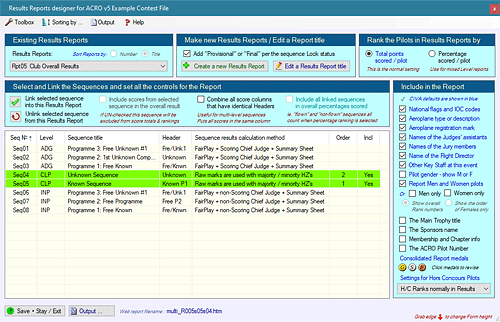
| ● | Title: Click the "Enter a title for a new Contest Results Report" button, and type in a fully descriptive report name - this will be the header for your final Report, so make sure it says exactly what you want. You can return later to edit and change it if necessary. | ||||||||
| ● | Provisional or Final: Set the check-box just under the Reports Titles drop-list to automatically append a "Provisional" or "Final" suffix to single sequence report titles. This is driven by the current Lock status of each sequence; when the sequence is Unlocked then " - Provisional" is appended, when the sequence is Locked then " - Final" is automatically added to the report title. If the box is not ticked the title is unchanged. | ||||||||
| ● | Ranking: Set the ranking method to Score or Percentage. For a single Level or Category report these two settings will both provide the same result, but if the report combines Pilots from more than one Level then the maximum-K at each Level will be very different and you should select 'percentage' to rank Pilots by the percentage column instead. | ||||||||
| ● | Sequences: Double-click the sequences you want in your Report in the correct display order, or select the Report sequences one by one and click the tick button, and they will be highlighted in green and linked to the Report in the order you have included them. To de-select a sequence double-click it again or select it and click the "X" button. | ||||||||
| ● | Exclusion: If you wish your report to display one column of scores for a sequence which should not be included in the final results totals - for instance a sequence with Pilots who have been "Cut" by the Jury - select the sequence and clear the "Include scores from selected sequence in the overall result" check-box. The sequence will be shown in the output but the scores will be excluded from the overall score totals. | ||||||||
| ● | Columns: If you have combined two or more sequences with Pilots from different Levels then ACRO will add an extra column with the Pilots three-letter Level beside their name. If some of the sequences are of exactly the same type, for example they're all first unknowns and you set an identical column header text (for example "Unk'n #1") for them all, then tick the "Combine score columns that all have identical headers" checkbox and ACRO will put these Pilots scores into a single column; this will neatly avoid having one or more 'extra' columns with some blank scores. | ||||||||
| ● | Percentage style: In multi-sequence reports you will normally want the percentage scored for each Pilot to be calculated from only those sequences where flying has at least started. You can however force this to be calculated using the total K from every linked sequence by ticking the "Include all linked sequences ..." checkbox, although this would be an unusual situation. | ||||||||
| ● | Include: Tick the information that you would like to be included in the header, the body and the footer of the Report - the CIVA defaults are the top block displayed in blue. | ||||||||
| ● |
 Report
Information and the display of the
Medals to
be awarded Report
Information and the display of the
Medals to
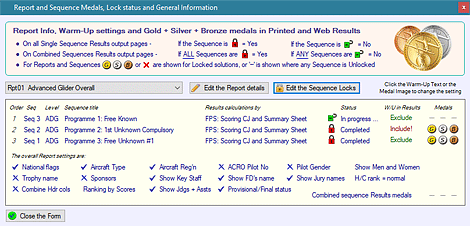
be awardedIn print and web report pages this useful info can be accessed and controlled using this button. Medal colours on print and web pages are displayed - ● for individual sequence reports ONLY when the sequence is Locked. ● for multiple or combined sequence reports the overall page shows the medal colours only when ALL of the single sequences are Locked. If any individual sequence is Unlocked the medal colours are not displayed in the overall page, whereas for each individual sequence that is Locked the web page will display the set medal indicators. For printed reports only the overall medals status is shown, whereas for web reports the status of each individual sequence will be given along with the overall report status. You can click the graphic of any medal to flip its status from Awarded to not, and vice-versa. Below the sequence details is a table of the Report settings and some other general info that indicates how many of the Report features will be shown. |
||||||||
 |
|||||||||
| ● | Gender: The Male and Female Pilots radio button will normally be set to include all Pilots in your report, but where necessary you can select Male or Female Pilots only. | ||||||||
| ● | Web filename: Note that the web report filename is shown at the foot of the form - this is the one you will need when you are creating or extending your Web Index Page. | ||||||||
|
|||||||||

